
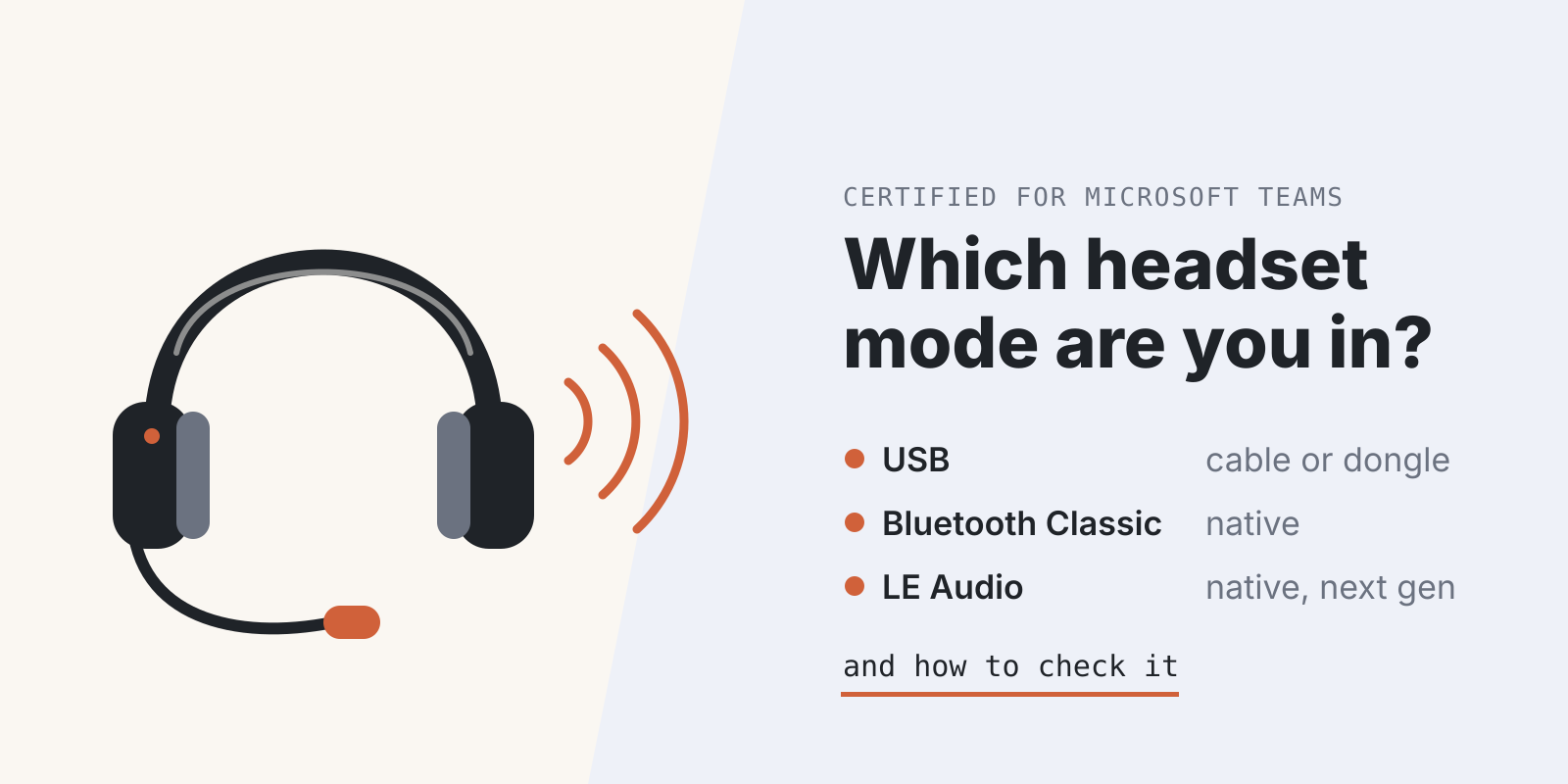
“Is this headset Certified for Teams?” Until recently that was a yes or no question. Not anymore. Microsoft’s official list of certified personal peripherals is now split into three tabs:
- Certified USB devices
- Certified Native Bluetooth devices - Classic
- Certified Native Bluetooth devices - LE Audio
The key thing to understand up front: certification is not a property of the headset, it is a property of the headset plus the way it is connected. The same wireless headset can be certified through its USB dongle, but not when you pair it directly with your laptop’s Bluetooth. Or the other way around. And the two native Bluetooth flavours are, for now, a Windows story.
In this post I explain what the three flavours mean and, more importantly, how you check which situation you are in.
The short version
| USB | Native Bluetooth Classic | Native Bluetooth LE Audio | |
|---|---|---|---|
| Connection | Cable, or wireless through a USB dongle | Directly to the PC’s Bluetooth radio | Directly to the PC’s Bluetooth radio |
| Dongle needed | Yes (when wireless) | No | No |
| Operating system | Windows and macOS | Windows 11 only | Windows 11 (22H2 or later) only |
| Depends on your laptop | Hardly | Yes: radio, drivers, Teams version | Yes: radio, audio codec, LE Audio drivers |
| Voice quality with mic active | Wideband | Wideband (HFP) | Super wideband, also in stereo |
| Extras | Including Teams Spatial Audio |
1. Certified USB devices
This is the classic and still the most predictable category. It covers wired USB headsets, but also wireless headsets (Bluetooth or DECT) that connect through an included USB dongle. To Windows, macOS and Teams, that dongle simply presents itself as a USB audio device. Dongle and headset were tested together, so the quality of the Bluetooth chip in your laptop does not matter.
What certification gives you, regardless of the category:
- Plug and play, with no extra configuration or provisioning by the admin.
- Call control: answer, hang up, mute/unmute and volume from the headset.
- Wideband audio with echo cancellation.
- On newer devices, a Teams button and LED that respond to Teams events, such as a meeting that is about to start.
- Extensibility through firmware updates.
Pay attention to the Certified Program column in the USB list. Older models are listed as “Skype for Business with upgrade to Microsoft Teams”. That is a different designation from “Certified for Microsoft Teams”, and those devices usually lack the Teams button integration.
2. Certified Native Bluetooth devices - Classic
“Native” means without a dongle, paired directly with the PC’s built-in Bluetooth. Users have been asking for this for a long time: USB ports are scarce, and a dongle is easy to leave at home.
Microsoft tests these devices for audio quality, call control and Teams button integration, and specifically for mute sync in both directions between the headset and the Teams client. But because you now depend on the laptop’s Bluetooth radio, there are hard requirements on the PC side:
- Windows 11. macOS is not supported for native Bluetooth (more on that below).
- An integrated Bluetooth radio. Aftermarket USB Bluetooth adapters are not recommended and not certified.
- Recommended processors: Intel Core 12th Gen or newer, all Windows 11 compatible AMD models, or Qualcomm Snapdragon X or newer.
- Teams desktop app version
24335.208.3315.1951or newer. Certification only covers the Teams desktop client, not Teams in the browser. - Intel drivers: Intel Bluetooth and Intel Wi-Fi
23.70.xor newer, plus a minimum Intel Smart Sound Technology driver version depending on your processor generation.
Known limitations according to Microsoft: the Teams button is less reliable when more than one Bluetooth peripheral is connected directly to the laptop, or when more than one tenant is signed in to the same Teams client. After restarting Teams it takes a few seconds before the button works again.
The real limitation of Bluetooth Classic sits in the protocol itself. As soon as your microphone is active, the headset falls back to the Hands-Free Profile (HFP). Modern headsets and Windows 11 do that in wideband, but it is still mono and still a compromise compared to what the headset is capable of.
3. Certified Native Bluetooth devices - LE Audio
LE Audio is the next generation of Bluetooth audio. It runs on the Bluetooth Low Energy radio instead of the Classic radio and uses the new LC3 codec. According to the Bluetooth SIG, LC3 delivers better quality than the old SBC codec, even at half the bit rate, which also helps battery life.
For Teams calls the big difference is this: you no longer have to choose between good audio and an active microphone. Windows 11 supports super wideband voice over LE Audio, now also in stereo. That also makes Teams Spatial Audio possible over Bluetooth, something that until now only worked with wired headsets.
This category is brand new. At the time of writing, the LE Audio tab lists exactly two devices, both qualified on 11/13/2026:
| Manufacturer | Model | Qualified | Certified Program |
|---|---|---|---|
| Jabra | Evolve3 85 | 11/13/2026 | Certified for Microsoft Teams |
| Jabra | Evolve3 75 | 11/13/2026 | Certified for Microsoft Teams |
According to Jabra, both offer call control, mute sync, super wideband voice and Spatial Audio over native LE Audio on supported Windows 11 PCs. An important detail: Jabra still ships a USB dongle in the box, as a fallback for PCs without LE Audio and for IT departments that standardise on it. Expect this list to grow as other vendors bring LE Audio headsets through certification.
The requirements on the PC are even stricter here. According to Microsoft, your laptop must:
- Run Windows 11 version 22H2 or later (Windows 10 and 21H2 are not supported).
- Have compatible Bluetooth LE hardware and a compatible audio codec.
- Have LE Audio capable drivers from the manufacturer, for both the Bluetooth radio and the audio codec.
And note: “supports Bluetooth LE” in your laptop’s spec sheet does not automatically mean LE Audio works. Bluetooth LE has been around for years for mice and wearables. LE Audio is a much more recent addition.
A side note: Microsoft’s documentation is not fully in sync at the moment. The certified devices overview has a separate LE Audio tab, while the Native Bluetooth page still states at the time of writing that LE Audio headsets are not being certified yet. The first LE Audio certifications date from 11/13/2026, so that page simply has not caught up. Go by the tab your model is listed in and the qualification date next to it.
What about macOS?
Short answer: on a Mac, the dongle is the way to go.
- Native Bluetooth certification is Windows only. Microsoft states that native Bluetooth peripherals are supported on Windows 11 PCs, and that macOS is not supported yet. That applies to both Classic and LE Audio.
- macOS does not do LE Audio for regular headsets. As far as I can find, Apple still has not enabled LE Audio and the LC3 codec for third-party headsets on macOS; Bluetooth audio on the Mac runs over Bluetooth Classic with SBC and AAC. Apple only uses parts of LE Audio for its own hearing aid program.
So if you pair an LE Audio headset such as the Evolve3 directly with a Mac, it falls back to Bluetooth Classic, without the LE Audio benefits and outside the certified scenario. Plug in the included dongle and you are back in the Certified USB category, which does cover macOS, including basic call control.
How to check: four steps
Step 1: Look up your exact model, in the right tab
Go to the list of certified devices and look for your model in all three tabs. The tab your model is listed in tells you over which connection it is certified.
A few examples that show the difference:
- Jabra Evolve3 75/85: certified as a USB device (with dongle) and over native LE Audio. For now they are the only two models in the LE Audio tab.
- Poly Voyager Focus 2 and Logitech Zone Wireless 2: listed both as USB device and under native Bluetooth.
- Jabra Evolve2 65/75/85: certified as USB device with the Link 390 dongle, not listed under native Bluetooth.
Is your model only in the USB list? Then the dongle is the certified route. Pairing directly may work, but without a guarantee for call control, mute sync and the Teams button.
Also check the Certified Program column: “Certified for Microsoft Teams” is what you are looking for.
Step 2: Check how your headset is connected right now
Many users honestly don’t know. In Teams, go to Settings > Devices > Audio device:
- Do you see the name of the dongle (for example “Jabra Link 390”) or a USB device? Then you are in the USB category.
- Do you see the name of the headset itself, and is it listed as paired and connected under Settings > Bluetooth & devices in Windows? Then you are on native Bluetooth.
A common situation: the headset was once paired directly with the laptop and also with the dongle. Teams then sees two audio devices for the same headset and can switch between them. Pick one deliberately and remove the other pairing.
Step 3: Does your laptop meet the native Bluetooth requirements?
If you want to work without a dongle, check your PC:
- Windows version: press
Win + Rand typewinver. You need Windows 11. - Teams version: in Teams, go to Settings > About Teams. At least
24335.208.3315.1951. - Bluetooth radio: in Device Manager > Bluetooth you should see an integrated adapter (for example “Intel(R) Wireless Bluetooth”), not a separate USB stick.
- Driver versions: right-click the adapter, then Properties > Driver. For Intel: Bluetooth and Wi-Fi
23.70.xor newer.
Prefer PowerShell? This shows the Bluetooth and network drivers with their versions:
Get-CimInstance Win32_PnPSignedDriver |
    Where-Object { $_.DeviceClass -in 'BLUETOOTH','NET' -and $_.DeviceName } |
    Select-Object DeviceClass, DeviceName, Manufacturer, DriverVersion |
    Sort-Object DeviceClass, DeviceName
Step 4: Does your laptop support LE Audio?
This is the simplest check, and the most revealing one:
- Open Settings > Bluetooth & devices > Devices (or run
ms-settings:bluetoothfromWin + R). - Under Device settings, look for “Use LE Audio when available”.
- Is the option there? Turn it on. Your laptop supports LE Audio.
- Is the option missing? Then your laptop currently does not support LE Audio, because of the hardware or missing drivers. A driver update from the manufacturer can sometimes add it later.
Your headset has to support it as well, of course. Look for “Bluetooth LE Audio” or the TMAP profile (Telephony and Media Audio Profile) in its specifications.
Which one should you use?
- Want certainty, manage a mixed fleet of laptops, or work on a Mac? Use the dongle. It works the same everywhere, including macOS, and does not depend on the laptop’s Bluetooth chip and drivers.
- Modern Windows 11 laptop and a headset in the Classic list? Native Bluetooth works fine and saves a USB port. Keep your drivers up to date.
- Laptop shows the LE Audio option and your headset is in the LE Audio list? Then you get the best voice quality and Spatial Audio, without a dongle.
- Open office with lots of wireless devices, or many Bluetooth devices connected at once? Microsoft itself advises sticking with the dongle in those situations. The same goes for laptops with an older or weak Bluetooth radio.
For admins: take this into account in your device advice to users. “Buy a Teams Certified headset” is no longer enough. The advice becomes: “buy a Teams Certified headset and use it the way it was certified”. I covered more of the recent device launches in my Ignite 2025 devices overview and in the August and September 2026 update.
Sources
- Microsoft Learn: Phones and devices for Microsoft Teams (certified peripherals)
- Microsoft Learn: Native Bluetooth personal peripherals for Microsoft Teams
- Microsoft Support: Check if a Windows 11 device supports Bluetooth LE Audio
- Bluetooth SIG: LE Audio
- Jabra: Evolve3, native Bluetooth LE Audio headsets certified for Microsoft Teams
- Windows OS Platform Blog: Super wideband stereo for Bluetooth LE Audio on Windows 11
- Apple Developer Forums: iOS and macOS support of Bluetooth LC3