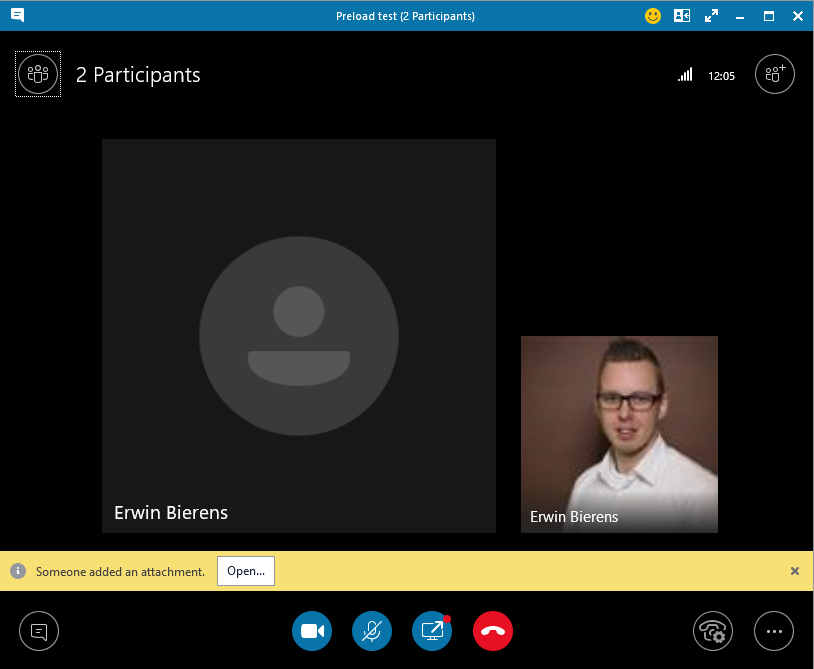
There’s a new feature in Skype for Business Online, you can now preload documents for Skype Meetings.
_Note: This only works for Skype for Business Online!_
/
Let’s Go
- Create a new Skype meeting in Outlook
- Go to the insert tab, click Attach File (or outlook item) and select the attachment you want to add in the meeting.
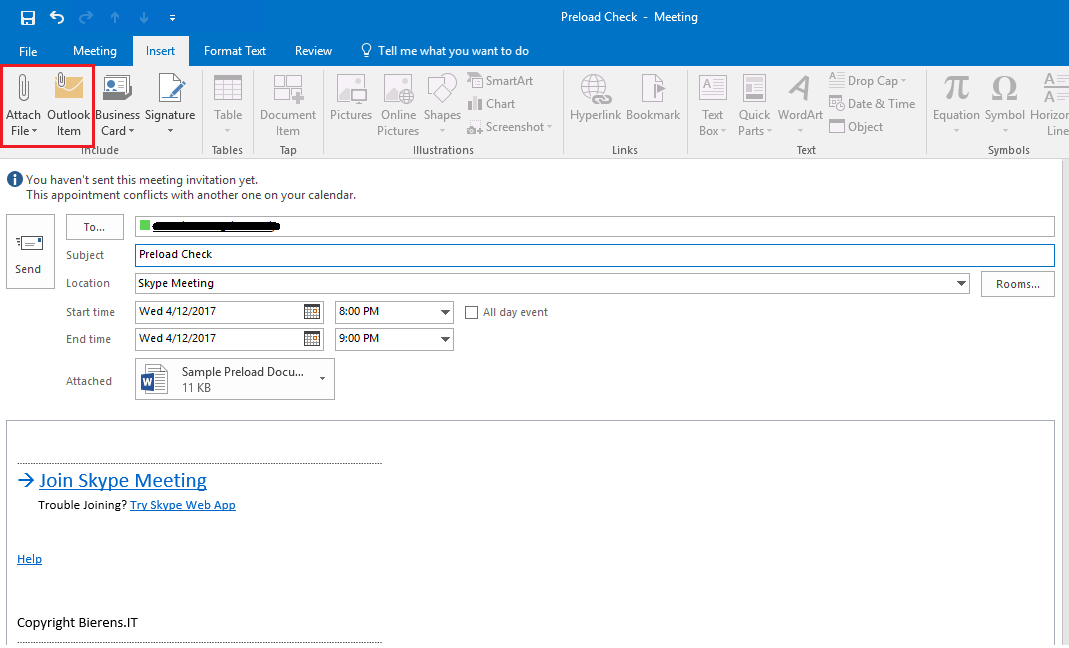
- Now just send the meeting!
When you join the meeting a information bar will display saying: meeting content is addedd
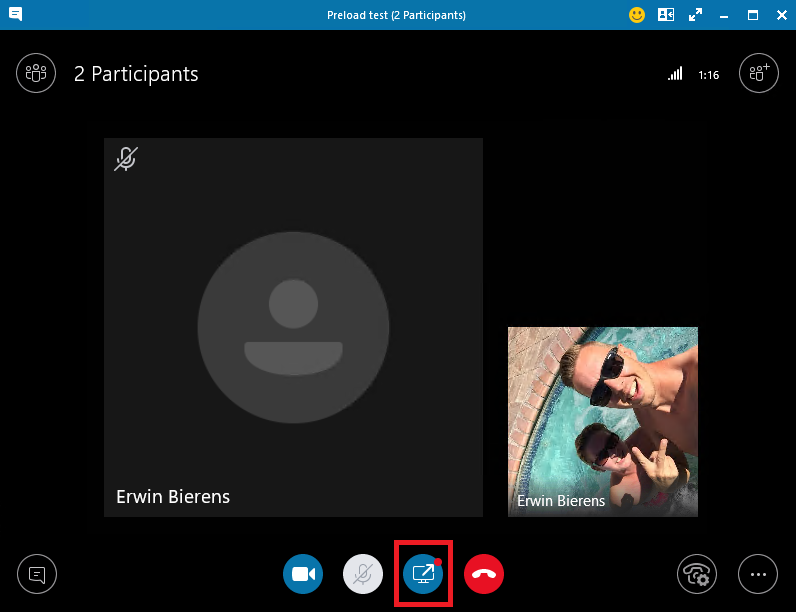
- Click the screen item (with the red dot) and select manage content.
- As presenter you can change the permissions to the file. Default only other presenters can download.
- Click the lock icon the change the permissions to “Everyone”, “Presenters” or “Organizer”.
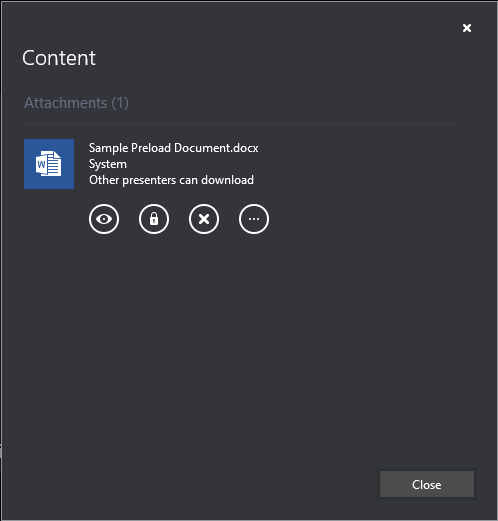
- In the next and example you will see the other party when permission is set to Everyone
- Click open to open the attachment.